Adding Photos to Job Details in the Swoop Mobile App:
- Navigate to the appropriate job in the job dashboard and open the details window
- Scroll to then click on the “Add Photos” button
- Allow Swoop to access your camera
- Take all the necessary photos
- Select “Done” at the top right to upload the photos
To add drop off photos, just scroll to the area underneath the specified drop off location and tap the camera icon to add.
Adding Photos to Job Details in Swoop Desktop:
- Navigate to the Job in your dashboard
- Open the entry line using the blue arrow button on the right of your screen
- You can add photos directly in the details by selecting the “Add Documents” button.
- Make sure to save.
Viewing Attached Photos:
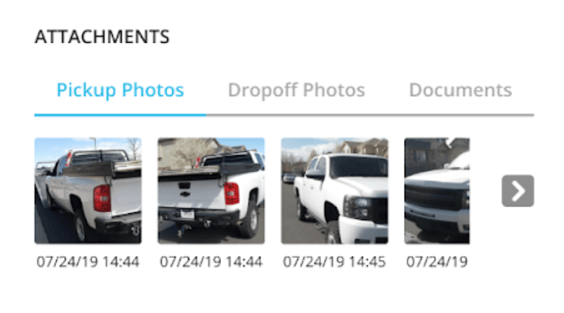
Photos can be viewed via either the Job Entry in the Jobs Dashboard or the Invoice in the Invoice Dashboard. Open the line item using the blue downward arrow icon and scroll to "Attachments."
Guidelines for Photos:
- Ideally, the more pictures you can provide, the better. We request you include:
- At pick-up: A minimum of four pictures (one from each corner) of the vehicle at pick-up (if in a safe location) that capture fully in frame: Front bumper and Rear bumper on both Driver side and Passenger side of vehicles.
- At least three close-up pictures of ANY/ALL pre-existing damages before touching the vehicle.
- Take a picture of the scene. This can include the environment, any relevant landmarks or signage, and any other pertinent details that may help provide a clearer picture of the situation.
- At pick-up: A minimum of four pictures (one from each corner) of the vehicle at pick-up (if in a safe location) that capture fully in frame: Front bumper and Rear bumper on both Driver side and Passenger side of vehicles.
-
- At drop-off: Pictures of all four corners of the vehicle again, VIN, license plate, odometer, and signage of delivery location
- Photo of business card/name of the point of contact at body shop/drop off location, even if vehicle is unable to be delivered/refused.
- Photo of business hours of operation if drop-off location is closed.
- At drop-off: Pictures of all four corners of the vehicle again, VIN, license plate, odometer, and signage of delivery location
-
- At least 1 photo per need as evidence of additional-charge requests.
- For example: For a dolly, the picture should show the vehicle loaded onto the dolly OR clearly show why the dolly is needed.
- At least 1 photo per need as evidence of additional-charge requests.
- Take photos in Landscape/horizontal view
- Take photos of equipment used
- Photo Quality:
- Photos should show clear visual representation of the Primary Point of Impact.
- Photos should include corners & full view angles of the full vehicle.
- Be mindful of glares/flashes when taking photos, it is critical that information like VIN and plate numbers are easily identifiable in the photos you include.
- Do your best to only photograph the vehicle you are there to service (rather than taking photos of all vehicles that may be on scene or may have been involved).
- At least one photo should always be included that shows no other vehicles in view, including your truck.
-
- If servicing a vehicle covered in snow, do your best to clean off the vehicle first so it's condition can be easily viewed/determined.
- Do not share photos that have been excessively zoomed-in. When taking close up photos position yourself and your camera to be close rather than zooming in on screen in your camera app to avoid distortions.
-
- Ensure you have the camera settings capturing the date, time and location of the photo, if available on your device.
Remember: it is in your best interest to share as many photos as possible during each job.
If you have any questions, please reach out to the Provider Advocate Group by submitting a ticket or live chatting with an agent, both available at info.agero.com/network.